Getting started with TryPolearn
A student and teacher guide to registering, connecting your own AI provider, and using the tutor, practice, exams, the knowledge map and the teacher tools — written from what the interface actually does, with real screenshots from a test account.
1. What TryPolearn is
TryPolearn is a personal AI tutor that teaches, practises and examines you inside one running conversation, and keeps a live, visual map of what you actually know rather than what you have merely seen. It works subject by subject, on material a teacher has uploaded and approved — a university course, exam preparation, or a language course — and every practice question, exam and chat turn feeds the same measured state of your knowledge. It does not run its own model in the background: every one of those turns is a real call to an AI provider, made with a key that belongs to you.
2. Registering
You need an invite code to register — your teacher or institution
gives you one (see section 4 for what the code
actually does). Open register.html and fill in:
- the invite code;
- your email address;
- a display name (what the tutor and your teacher will call you);
- a password (twice, to confirm it);
- your primary language — see below, this is not just the interface language;
- three consent checkboxes, all required: that your learning data (chats, practice, assessment results) is stored to support your learning; that your questions are sent to your own chosen AI provider using your own key; and that your anonymized learning data may be used for research (a pseudonymous identifier only, never your personal details).
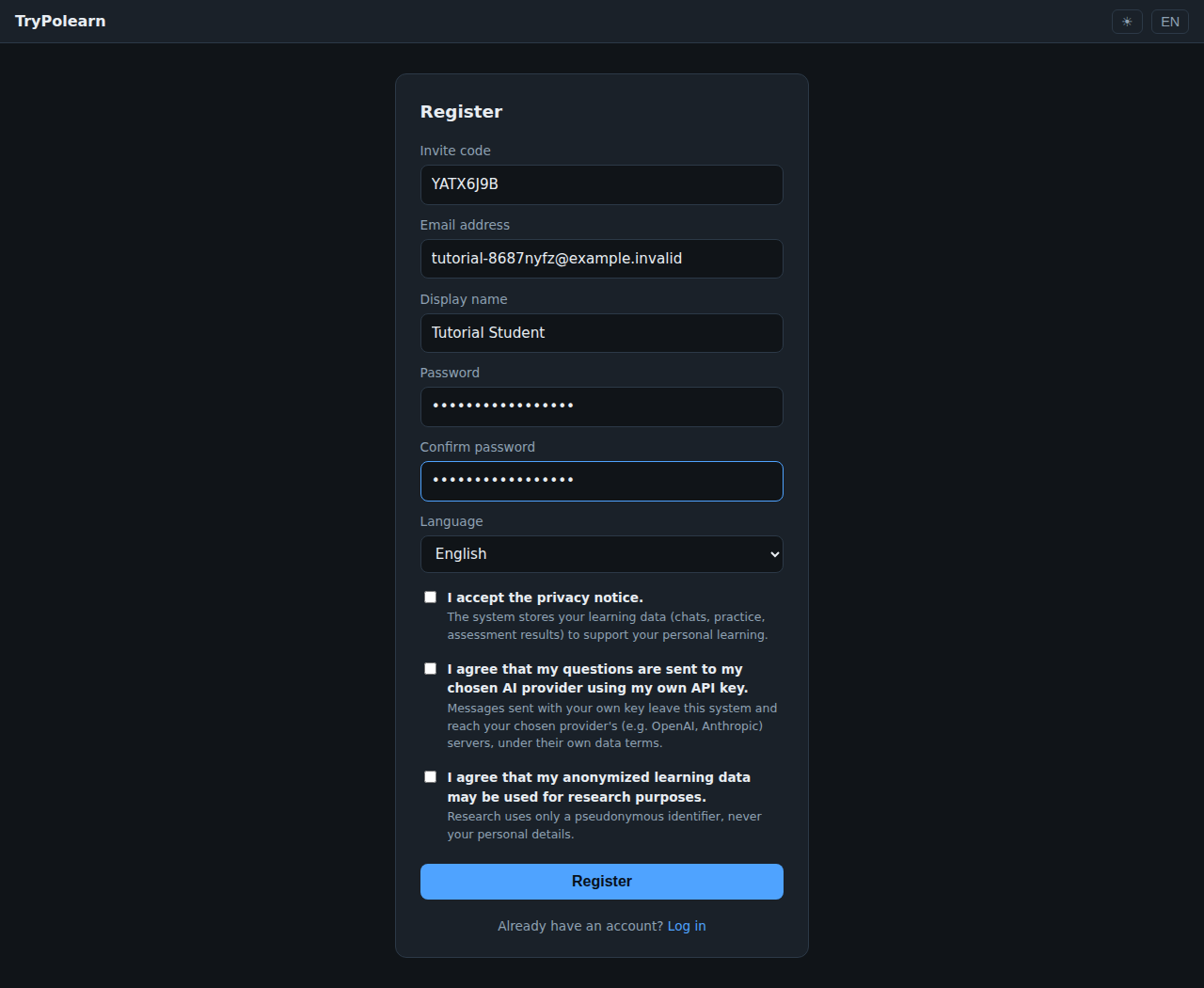
Choosing the primary language
This one setting controls two things at once: the interface language, and the language the tutor explains in, in every subject. In a language course the worked examples stay in the language you are studying — only the tutor's explanation of them switches to your primary language. You can change it again later on the Profile page.
After you submit, you land on the Profile page with a callout prompting you to add an API key — that is exactly section 3, next.
3. Getting an API key
Using the tutor chat requires your own API key from an AI provider. The key is stored encrypted and is never shown again once saved — TryPolearn keeps no record of it in plain text, and it is billed entirely on your provider account.
The profile page currently supports six providers: OpenAI, Anthropic, Gemini (Google), Mistral, Qwen and Kimi. Every one of them has its own "API keys" page inside its own account or developer console — for example OpenAI's and Anthropic's consoles, Google AI Studio for Gemini, and the equivalent developer console for Mistral, Qwen or Kimi. Generate a key there (usually under a section literally called "API keys"), copy it, and come back here — do not share it anywhere else.
Saving it on your profile
- Open Profile in the top navigation.
- Under API key, pick your provider from the dropdown.
- Paste the key and click Save key.
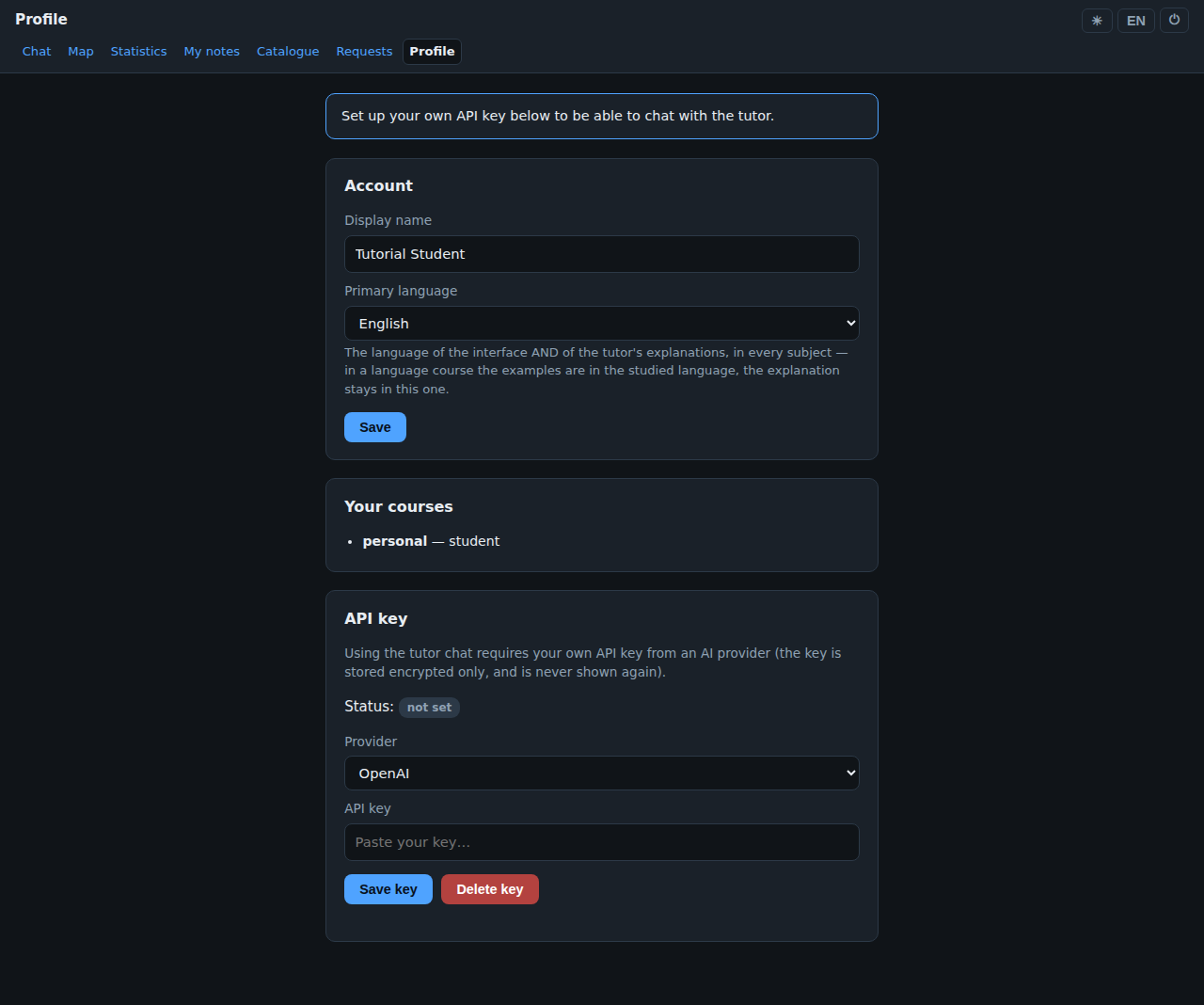
What the status badge means
not set no key saved yet — practice,
chat and exams are refused.
unchecked a key is saved but has
not been used against the provider yet.
valid the provider accepted it — you can
chat, practise and sit exams.
invalid the provider rejected it
(typo, revoked key, or the wrong provider selected for that key).
quota exhausted the key is real
but the provider account has no credit or quota left.
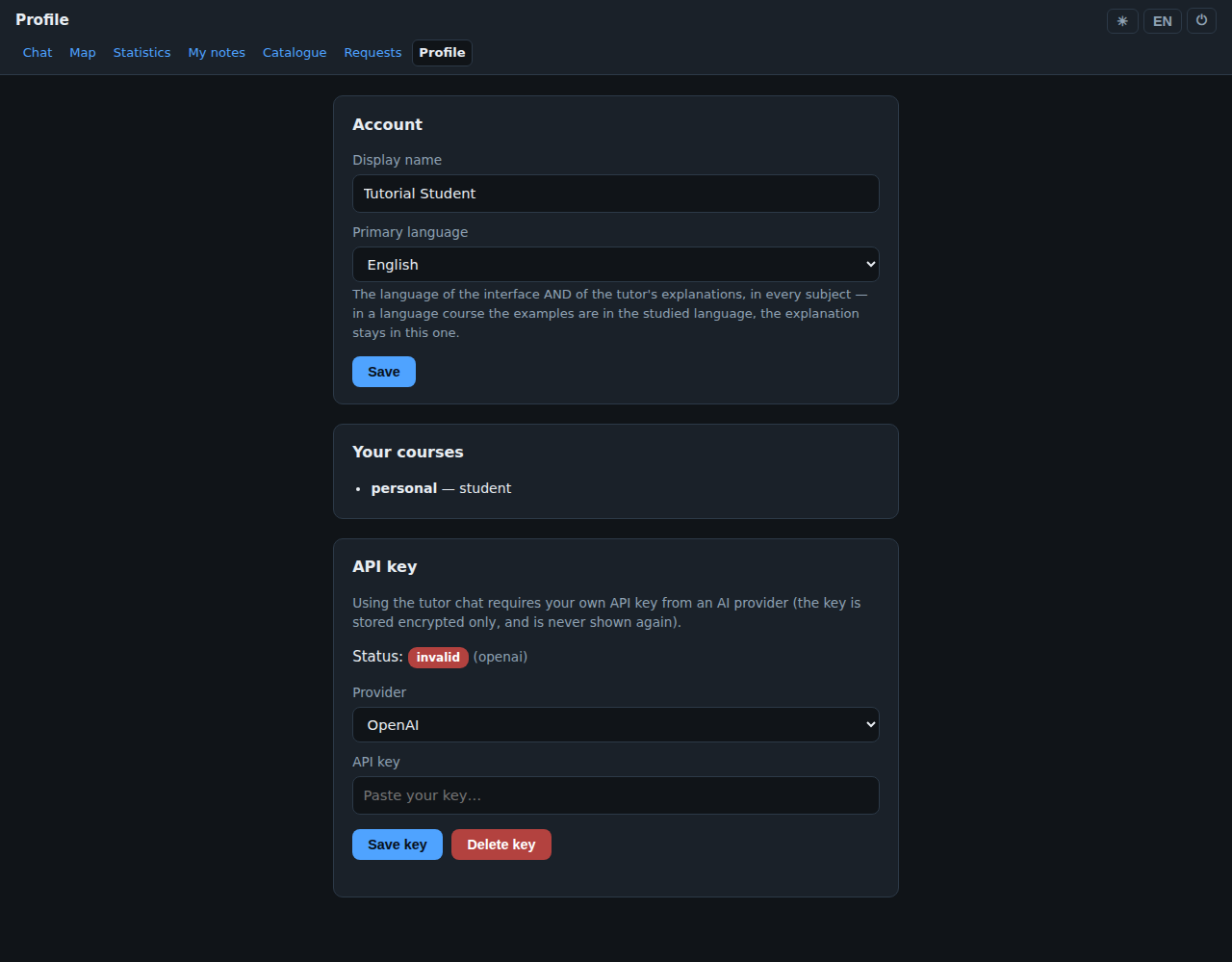
Without a working key
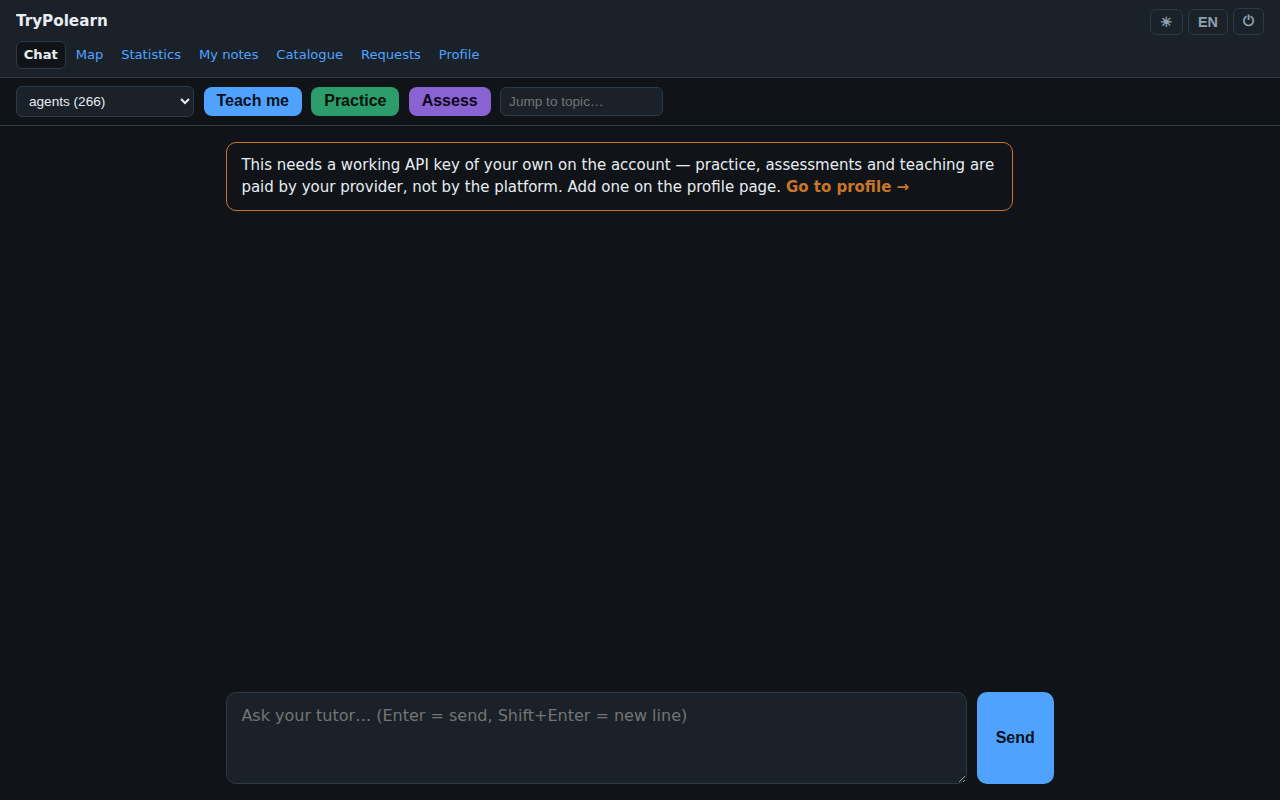
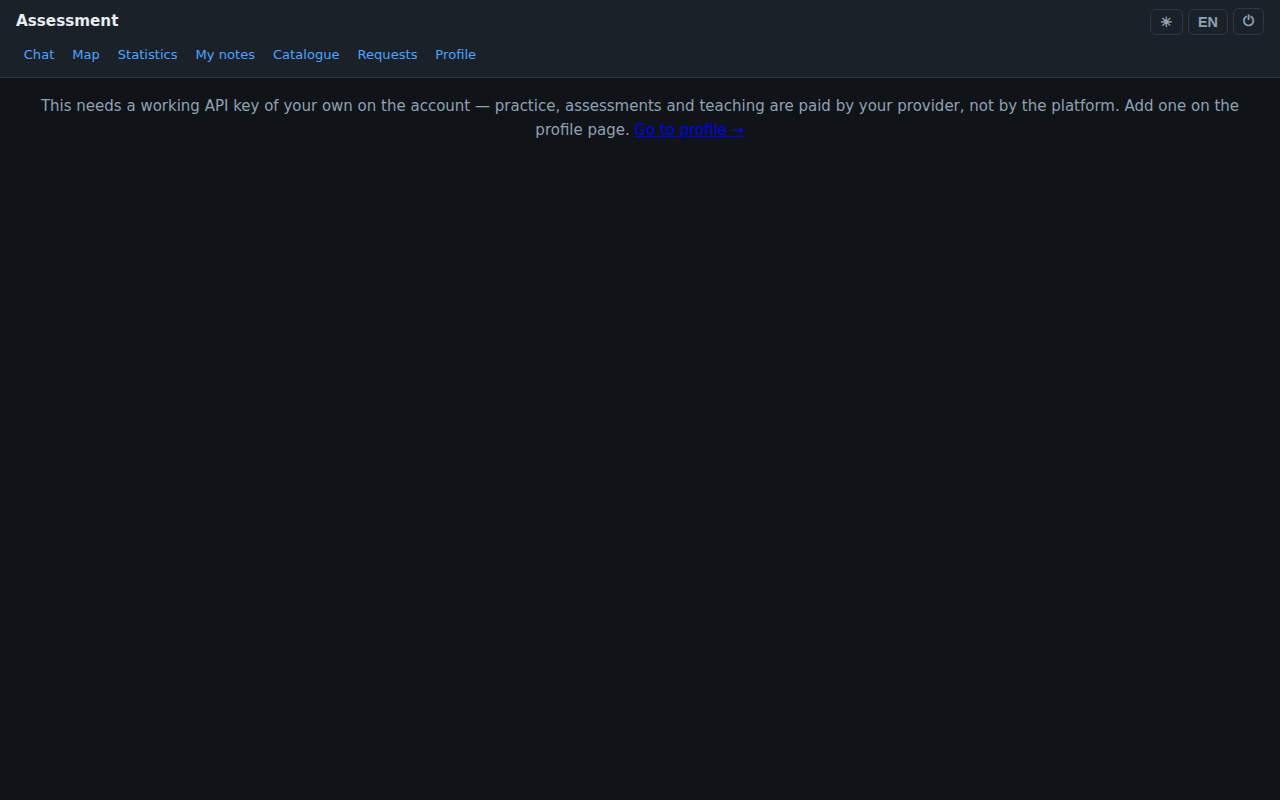
Anything that costs the provider money — teaching, practice, and assessments — is refused until the status is valid. You will see exactly this message, wherever it applies, with a link straight back here:
"This needs a working API key of your own on the account — practice, assessments and teaching are paid by your provider, not by the platform. Add one on the profile page."
4. Joining a course with an invite code
An invite code is course-scoped: a teacher creates it for one course and one role (almost always student), optionally with an expiry (in days) and a maximum number of uses. Entering a valid code at registration enrols you into that course with that role — that is the only point where a code is used. There is no separate "enter a code later" screen: the invite field only exists on the registration form, and it is consumed once, the moment your account is created.
That has a direct consequence worth knowing honestly: if you already have an account and need access to a different course or subject, a second invite code will not attach itself to your existing account through this form — ask your teacher, who has a separate way (on the teacher pages) to add someone who has already registered.
5. The chat page
The chat page (the "Chat" tab, also the app's home page) is where you talk to the tutor. Across the top:
- a subject selector — "all subjects" or one specific subject you have access to;
- Teach me — asks the tutor to teach the next topic in the selected subject;
- Practice — the next practice item that is due;
- Assess — starts a structured assessment for the subject, whose result is recorded (see section 7);
- a "Jump to topic…" search box that searches the same concept graph as the Map page and jumps straight to "teach me this" for whatever you pick.
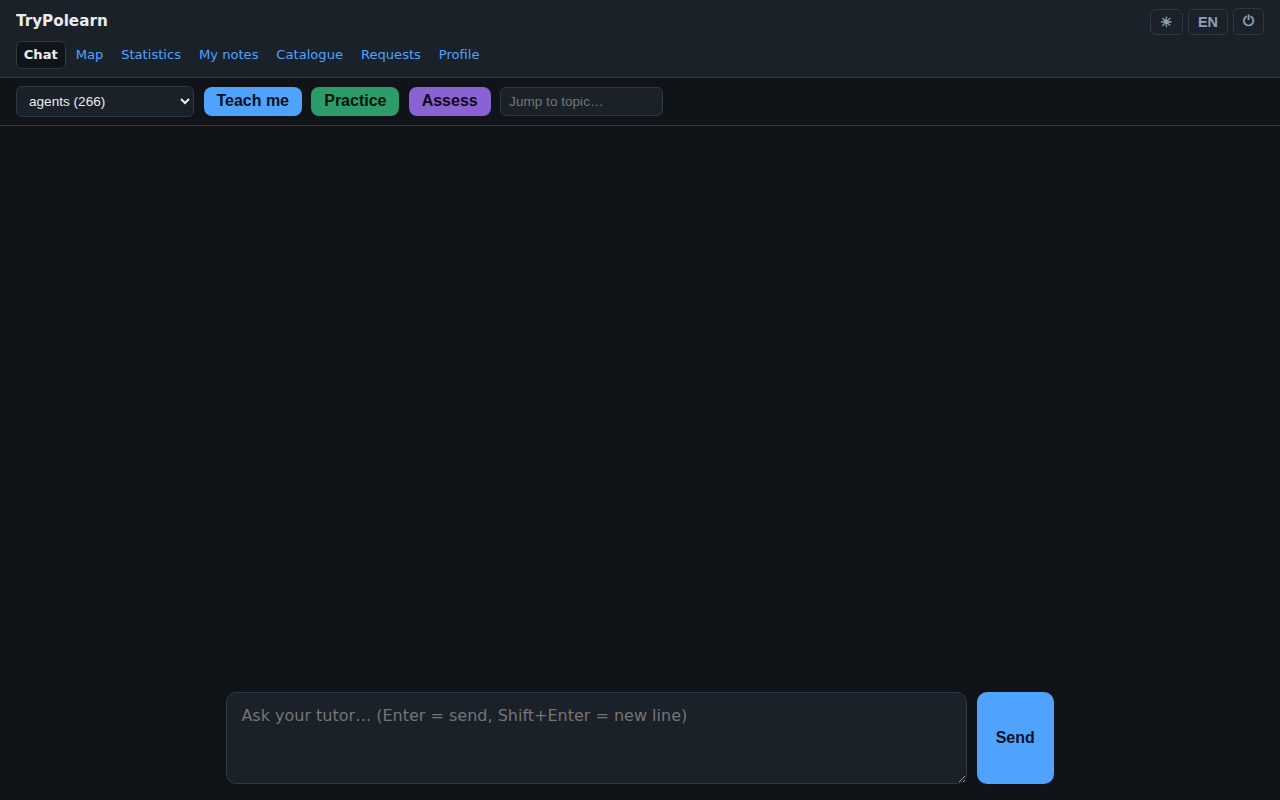
Once a topic is open, a second row of buttons appears under the conversation: Teach, Practice, Prove it (a graded assessment of just that topic), Note (your own private note on that concept — it shows up later on the "My notes" page), and Request (ask for supplementary material about that exact topic; you can see the status of requests you have filed on the "Requests" page). Every graded practice answer is shown with its rating (see section 6) and an estimated mastery percentage directly under the tutor's reply, and any source chunks the answer drew from are listed there too.
6. Practice and mastery
Every practice answer you submit is graded by the tutor against your own provider key, and comes back with a rating from 1 to 4 plus written feedback — not just right/wrong, but how well you answered. Alongside the rating the tutor shows an estimated mastery percentage for that concept: a running estimate of how solidly you know it, built from every practice answer and every exam answer you have given on it, not from a single attempt. It rises with consistently good answers and falls with wrong or shaky ones — the Map page (section 8) is where you see it summarised across every concept at once.
7. Assessment (exam)
An assessment runs on its own page, deliberately separate from the chat — so nothing you asked the tutor sits on screen above the questions while you are being measured. A few rules make it a real assessment rather than graded practice:
- Questions come one at a time, with a progress track across the top and a running count ("2 / 8").
- No verdict during the exam — submitting an answer only records it ("3 answer(s) recorded — the detailed feedback comes at the end"); you get no right/wrong signal until every question is answered, because a wrong answer explained mid-exam is really the answer to the next question.
- Questions are drawn from ones you have not seen before. If you have already answered everything a concept has to offer, you are told so plainly rather than being re-asked old questions: "You have already answered every question this concept has — new ones are being generated. Come back in a few minutes."
- You can Leave an exam early — the answers you already gave stay recorded as real practice, the run simply never gets a finish time.
At the end you get a score (e.g. "6/8 (75%)"), a short overall comment, and a breakdown per question: your rating out of 4, the tutor's feedback, and — whenever you did not get full marks — a row of short labels explaining exactly why, drawn from a fixed set: no justification given, incomplete answer, imprecise terminology, a wrong claim, spelling / grammar errors, or does not answer the question. A subject with its own required exam language also flags an answer that was not written in it.
8. The Map and Statistics pages
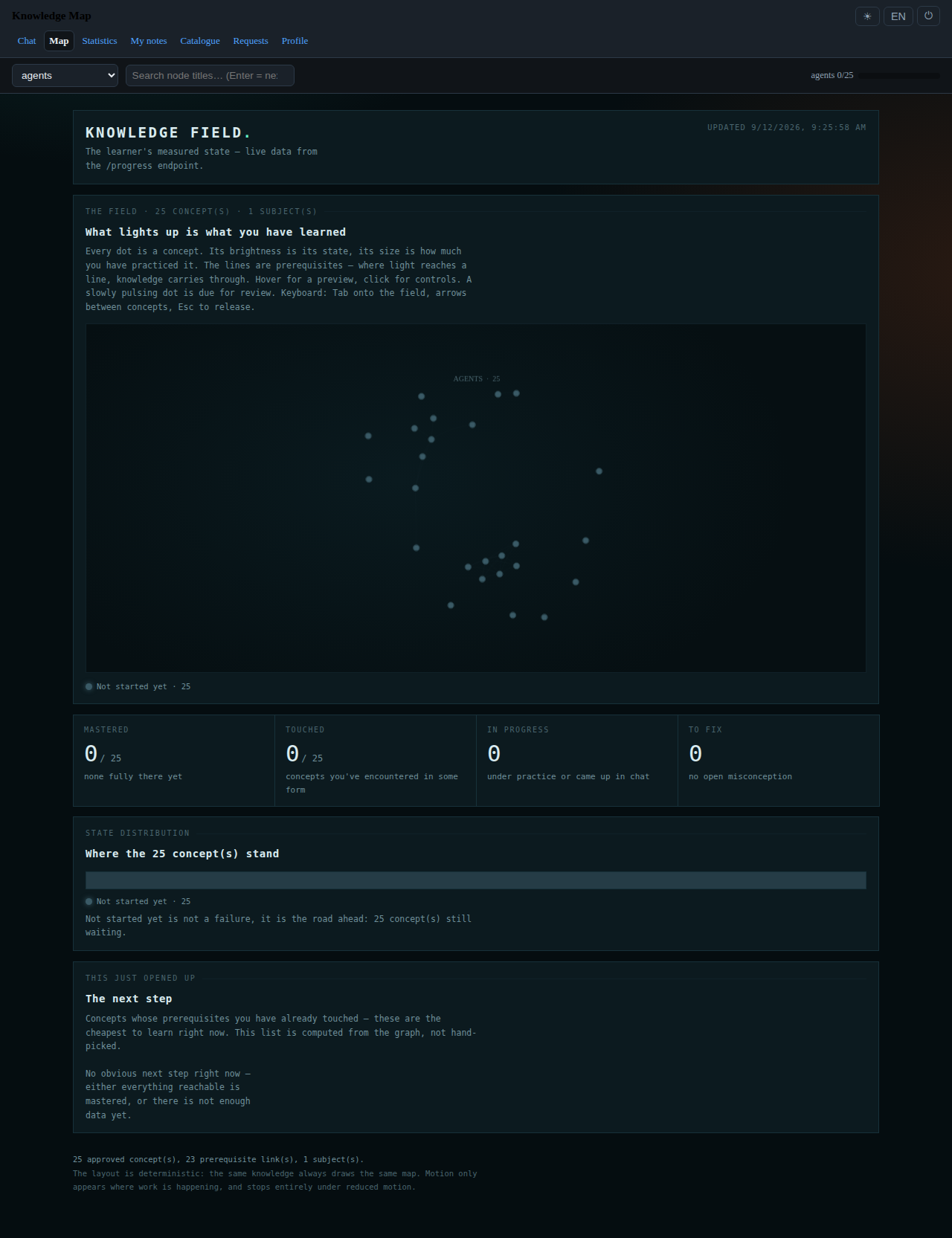
The Map ("Knowledge Field") is a live picture of your measured state, one dot per concept: its brightness is its state, its size is how much you have practised it, and the lines between dots are prerequisites — hover a dot for a preview, click it for controls. A slowly pulsing dot is due for review.
Deeper levels — practicing and mastered — only come from actual practice, not from reading a chat answer; "not started yet" is not a failure, it is simply the road still ahead.
Chapters and gates
A teacher can group a subject's material into chapters, put them in order, and say which chapters a given chapter needs first. You cannot practise a chapter that is still locked this way — but asking about it in chat stays open regardless, so a gate never blocks a genuine question, only graded practice ahead of where you are supposed to be. A subject with no chapters defined has no gates at all.
Statistics
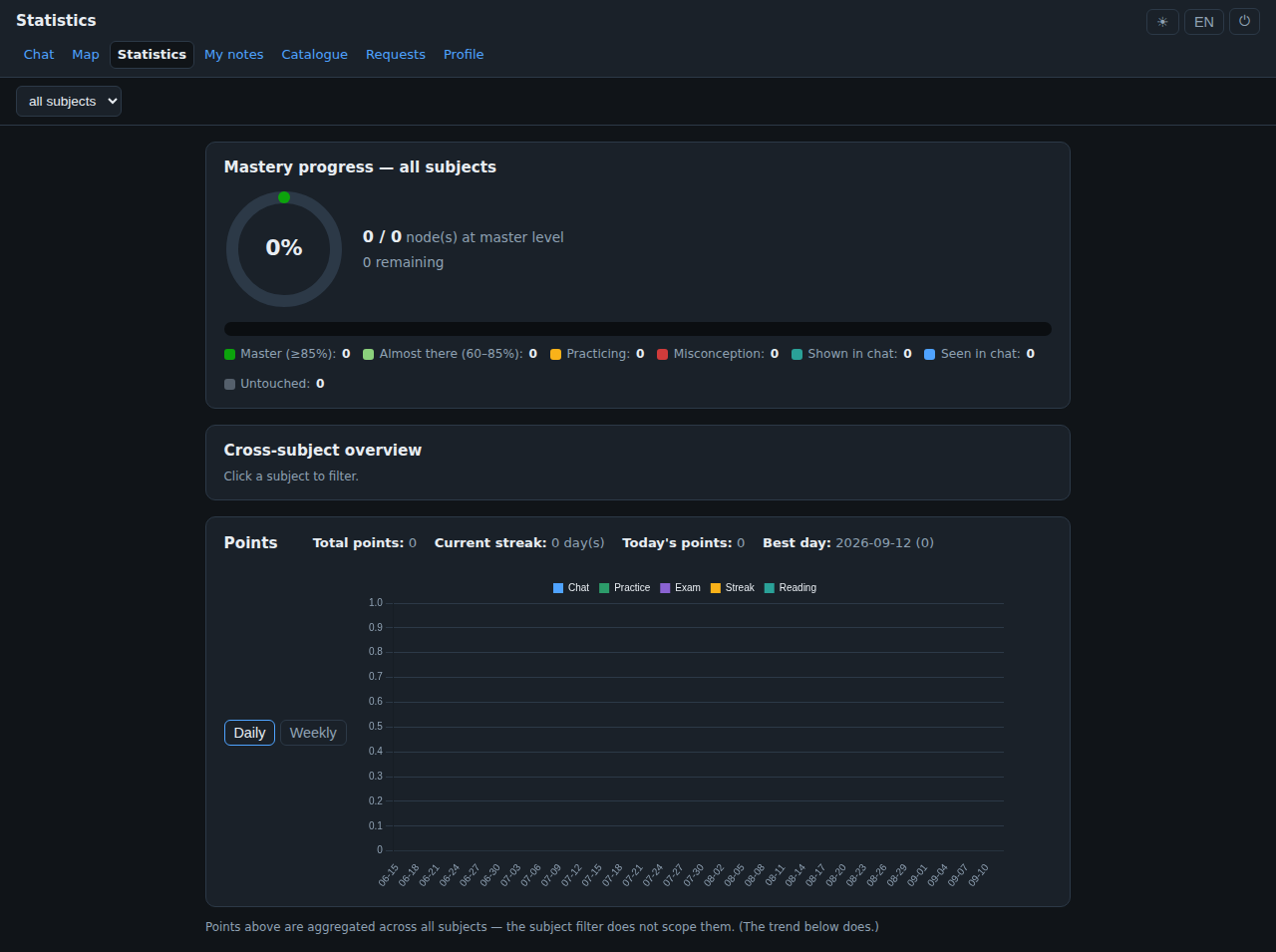
The Statistics page rolls the same measured state up into numbers: a mastery-progress ring (how many concepts are at master level, and how many remain), a per-state breakdown, a cross-subject overview, and a points chart broken down by activity (chat, practice, exam, streak bonus, reading) with your current streak and best day.
9. For teachers
Everything below lives on the My courses page (visible in the
navigation once you hold a teacher role on a course). The page is one path
from top to bottom: you choose a course, under it one of its
subjects, and under that a student. Each choice is made once,
at the top, and everything underneath follows it — no section of the page
has a course or subject picker of its own. The address bar keeps the view
(for example teacher.html?course=…&subject=…&tab=students),
so a reload or a shared link opens the same place, and the page reopens on
the course you looked at last.
Two boxes in the left rail, under Outside a course, do not belong to any course. Start a subject is open to anyone, even before you teach any course, because a subject exists independently of a course and someone has to be able to ask for one:
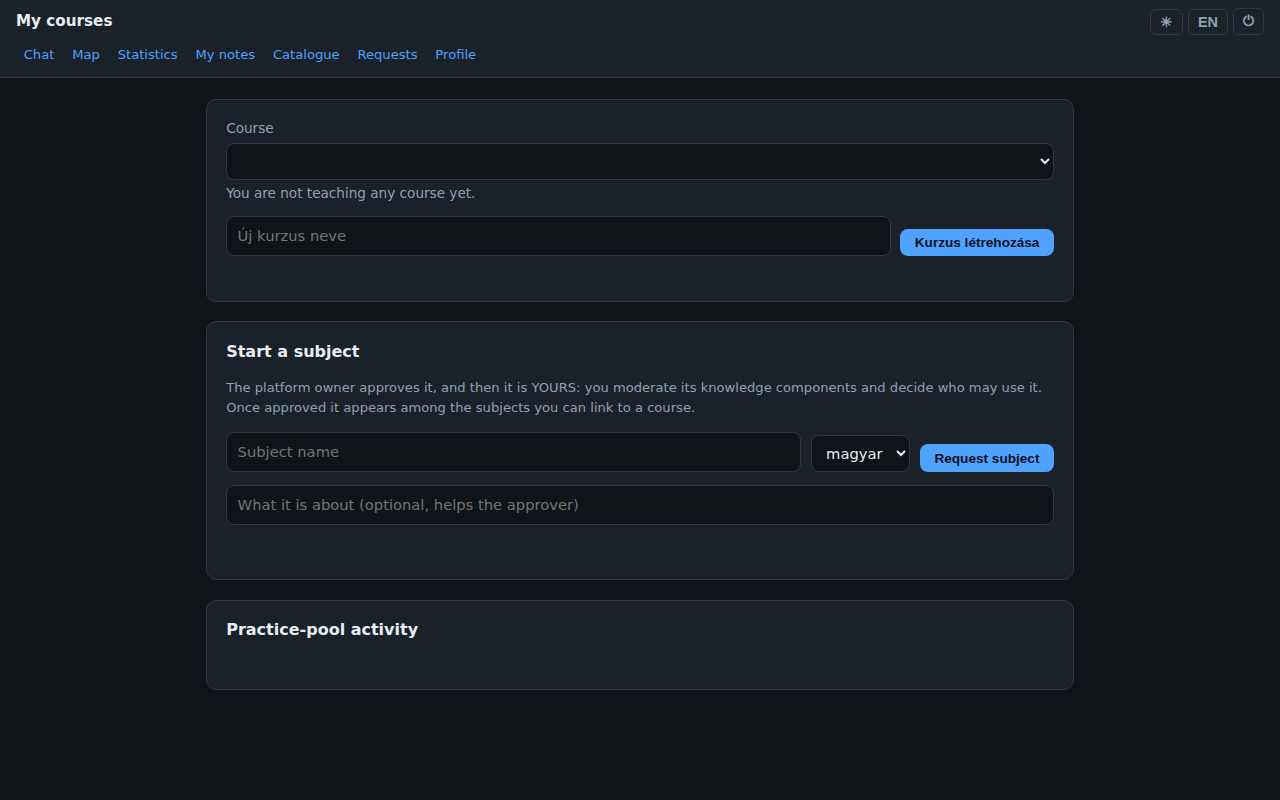
Requesting a subject. Name it, pick its material language, optionally say what it is about, and submit. The platform owner approves it, and from then on it is yours: you moderate its knowledge components and decide who may use it. Once approved it appears among the subjects you can add to a course. The other box, Practice-pool activity, is background information about practice questions being generated for your subjects; it stays folded until you open it.
(teacher view, described) The left rail lists your courses with their institution, number of students and number of subjects; the selected one is highlighted. + New course at the bottom of the list creates one (you choose the institution when you belong to more than one). Above the content a breadcrumb — Course › Subject › Student — shows where you are and takes you back up.
A course has three tabs:
- Subjects — one card per subject: how many chapters it has, how many of its knowledge components (KCs) are approved out of all of them (with a bar), how many are still waiting for review, and how many of the course's students have access. + Add subject links another subject to the course. Linking gives nobody access yet; click a card to open the subject.
- People and invites — who is in the course, in which role, the state of their own API key and their last activity; adding somebody who has already registered; and invite codes for a role (student by default), with an optional expiry in days and an optional maximum number of uses — the new code is shown once, ready to hand out (see section 4).
- Overview — the course report: number of students, how many were active in the last 7 days, average points and mastery, a per-subject summary, and the course roster with points, mastery, progress index, mastered KCs and chapters done. Click a column header to sort, use Export CSV to download exactly what is on screen, and click a student to open their report for the whole course.
A subject (opened from its card) has four tabs:
- Students — one row per student of the course. The switch in the first column decides whether that student may study this subject; Grant everyone switches it on for all who do not have it yet. Your own subjects are granted at once; for catalogue material the switch sends a request to the platform owner instead, and the row shows it as pending. Switching access off deletes none of the student's work. The other columns are the student's progress in this subject — mastered KCs and chapters done — plus their 30-day points and last activity. Click a row and the student's report opens in a panel on the right, narrowed to this subject's chapters and KCs.
- Chapters — group the subject's documents into chapters, order them, and mark which chapters a chapter requires first (see section 8's gates). Each chapter shows how many of its KCs are approved and how many are pending, with a link straight to the review queue for that chapter.
- Materials — upload a
.mdor.pdffile into this subject; it turns into pending KCs for review within about a minute. Below it: the subject's sources, documents and KC counts, the files with the chapter each one is in, and a link to KC review (its own page), where each pending concept is approved or rejected before students can be taught or tested on it. - Team — who teaches or assists on this subject. Teachers have identical rights; an assistant may invite students and let them in, and sees nothing about how they are doing.
Every number on the analytic tabs has a small ? next to it that explains what it means and which direction is good.
10. Troubleshooting
These are the exact messages you may see, and what they mean.
| You see | What it means / what to do |
|---|---|
| "This needs a working API key of your own on the account — practice, assessments and teaching are paid by your provider, not by the platform. Add one on the profile page." | No key, or the saved one is not valid. Go to Profile and add or fix your key (section 3). |
| Status badge: invalid | The provider rejected the key — check for a typo, a revoked key, or the wrong provider selected in the dropdown. |
| Status badge: quota exhausted | The key itself is fine, but that provider account has no credit or quota left — top it up on the provider's own site. |
| "The provider has retired the model this system asks it for, and its current listing offered no replacement. Nothing is wrong with your key — the operator has been notified. Please try again later." | A configuration mismatch on the platform side, not your key. Wait and try again; the operator has already been told. |
| "This system and the provider are out of step. Nothing is wrong with your key — the operator has been notified." | Same kind of platform-side mismatch. Nothing for you to fix; try again later. |
| "{Provider} is not available right now — we already retried once. Nothing is wrong with your key: wait a minute and send it again." | A temporary outage at the provider. Wait a moment and resend. |
| "{Provider} refused this request. Nothing is wrong with your key — the operator has been notified." | The provider declined the specific call (often a content or rate policy on their side). The operator has been notified; try rephrasing or wait. |
| "The call to {provider} failed. Try again; if it keeps happening, the operator has been notified." | A transient network/provider error. Retry; it self-reports if it keeps failing. |
| "There is nothing to teach in this subject right now — either no concept is approved yet, or the chapter gates have not opened it. Switch subject, or see where you stand on the Map." | Nothing approved and reachable yet in that subject. Try another subject, or check the Map (section 8) to see what is gated. |
| "no practice items yet — approve the KC first." / "practice items are generated automatically on approval, but generation seems to have failed for this topic — ask a teacher to regenerate them on the Map page." | The concept itself is not approved yet, or item generation failed for it — ask a teacher; they can regenerate items from the Map page. |
| "You have already answered every question this concept has — new ones are being generated. Come back in a few minutes." | Not an error — you have exhausted the current question pool for that concept, and it will not repeat old questions. Come back shortly. |
This guide was generated from the actual pages of this build and a fresh test account; if something here no longer matches what you see, the interface has moved on since — trust the interface, and tell a teacher or the platform owner so this page can be updated.